Your Guide to Bundle
Bundle is an easy new way to share your work on Thangs, reach a broader audience, and start building momentum around your designs.
Bundle is a new way to share your work on Thangs, reach a broader audience, and start building momentum around your designs.
With Bundle, you can:
- Reach new audiences who may not have seen your work before
- Share models at your own pace, with no pressure or burnout
- Build interest in your designs even if you haven’t created a membership plan yet
This guide will walk you through how to get started. If you prefer learning through a more detailed video format, click here!

Useful Tips!
We recommend starting with 10–30 designs. Avoid uploading your entire catalog — leave some models exclusively for memberships.
Add in models regularly to keep Bundle catalog fresh.
Test for printability and upload high-quality images to make your models stand out.
Check out this page to learn more about Bundle’s purpose & payout structure.
Step 1: Set Up Payments
Before publishing, set up payments so you can receive payouts from your sales.
- Log into your Thangs account.
- Go to Settings > Monetization.
- Select Set up payments (or Initiate payout if you’ve already started).
- Complete this step before publishing models.
- Return to Settings to begin the account review process for designer approval.

Step 2: Add Models to Bundle
Once your payment setup and account review are complete, add models to your Bundle.
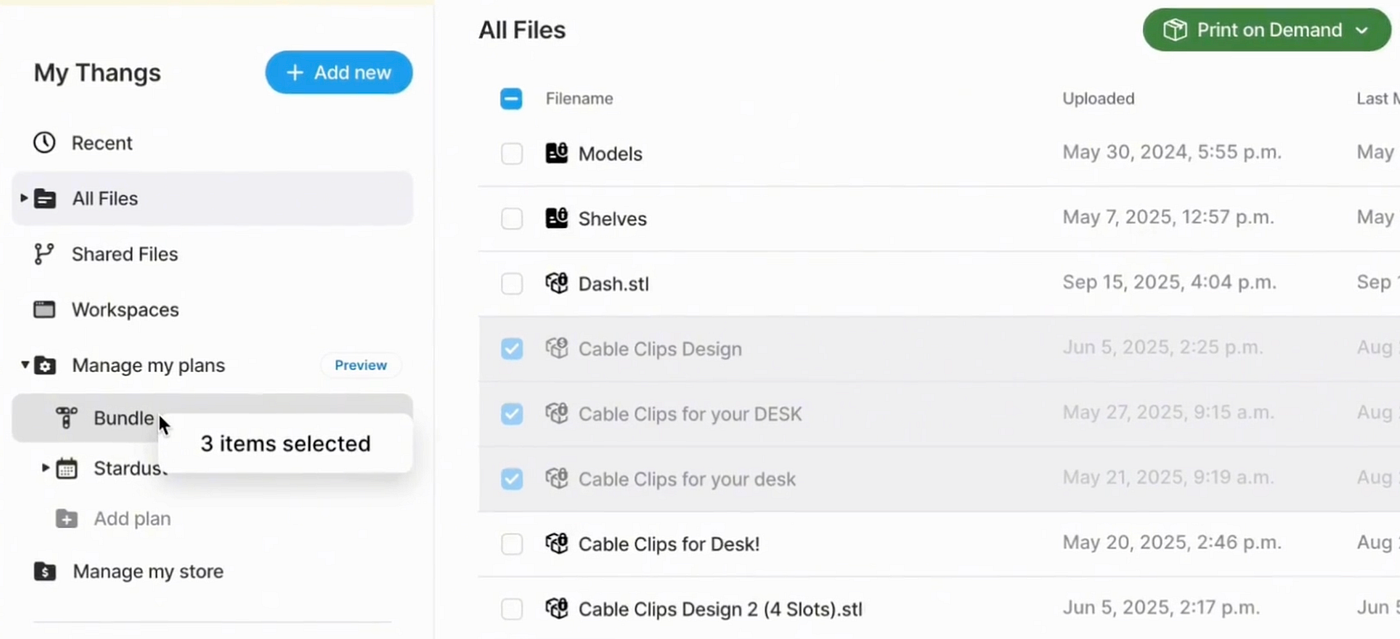
- From your profile, navigate to My Models > Manage My Plans > Bundle.
- Upload the models of your choosing.
- Edit the model page as you like to accurately reflect your brand, then select Save & Publish.
Your model will now appear on your profile and in the Bundle catalog. You can also assign existing models by dragging and dropping them into the Bundle plan.
Step 3: Track Performance
You can track the performance of your Bundle in your Analytics.
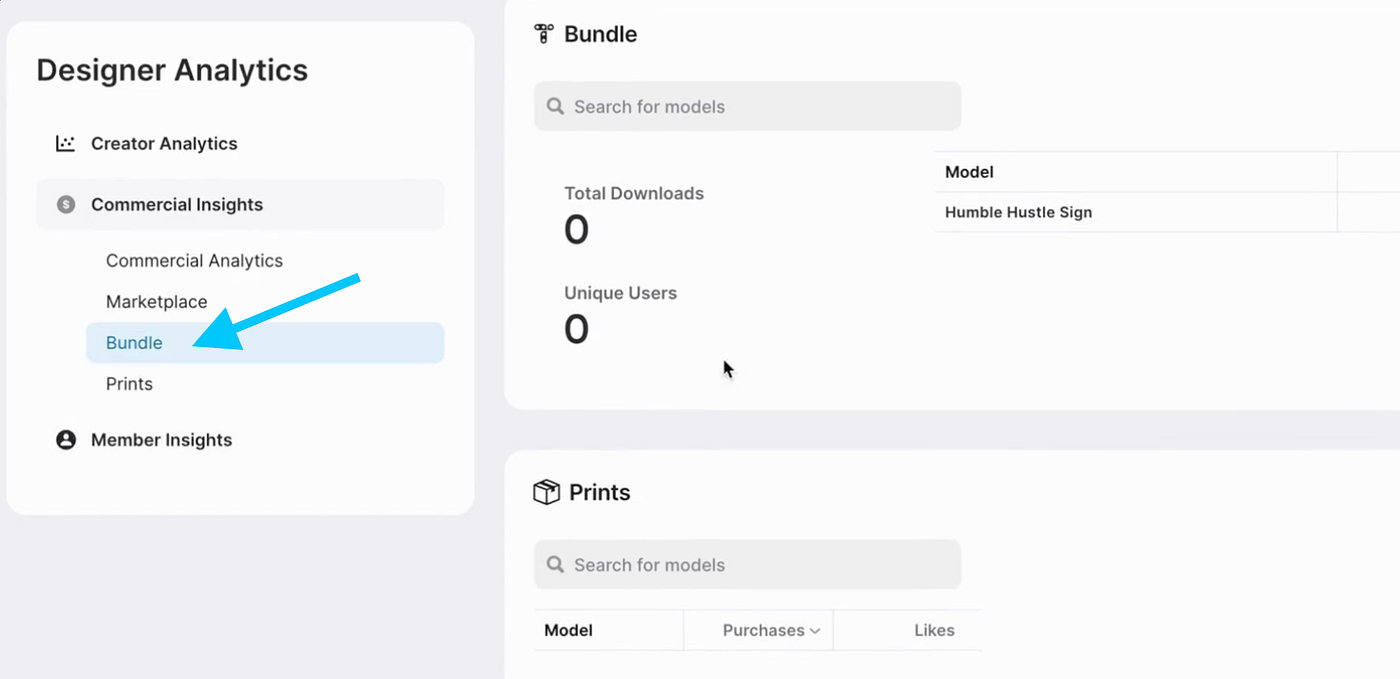
- Open the Analytics tab.
- Under Designer Analytics, select Commercial Insights > Bundle.
- Review your uploads and monitor download counts for each design.
- You can also see what designs & design categories Thangs users are most interested in & insights about your own members.
Step 4: Join the Community
Connect with us and other designers on Discord to exchange feedback, ideas, and support.

Start Building with Bundle
With just a few steps, you can share your designs with a larger audience and begin generating momentum. Bundle gives you the flexibility to showcase your work without burnout, while still building excitement for your future plans.
Join our Thangs Discord community to connect and share your feedback!
Also, remember to include @Thangs3D in your social media posts. Posts with this tag receive an automatic boost from Thangs Marketing, enhancing your engagement at no extra cost.