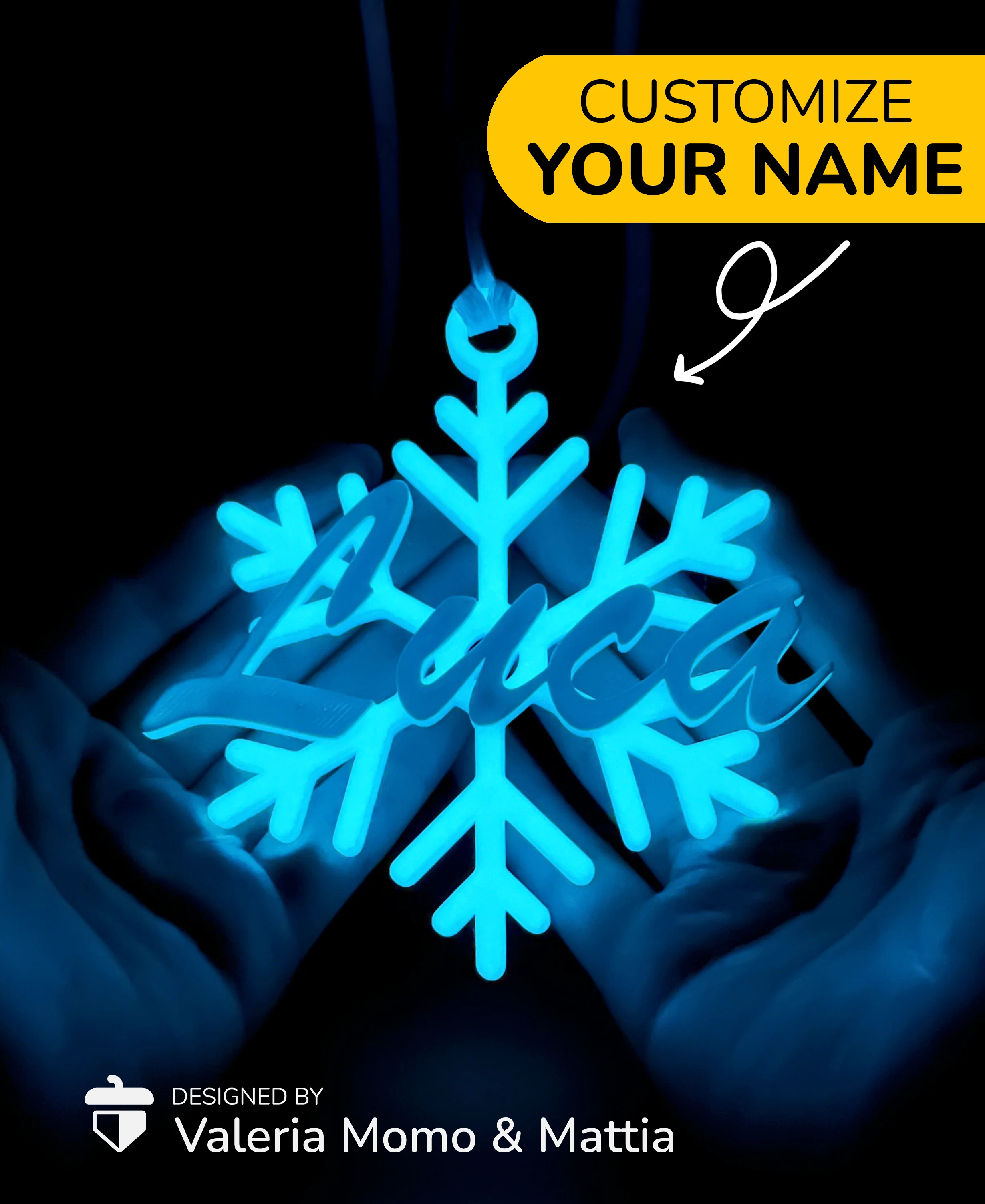


Christmas Decoration (#2) Your Name, Snowflake, Gift
822 downloads · 2 years ago · The font used is “Brush Script MT”, it is a **free** font with a **free commercial license**. If it
This model is restricted by licensing terms.
View license.
The font used is “Brush Script MT”, it is a free font with a free commercial license. If it is not installed on your PC you can download it here. For installing steps, read below. If you want to sell the finished product, I invite you to enter my Commercial License here on Thangs3D. 🤗
How to Customize with Your Name🎄❄️ Here is the BambuStudio how-to guide to customize your christmas decoration. If you use a different slicer it will make little difference, the concepts and logical steps are the same! Youtube Guide Url
Installing new fonts in your PC
- visit dafont (here) and search your font, like the one I used (direct link)
- download the zip
- unzip the file
- select the font file
- hold Ctrl+Shift and click with mouse right button
- click "install for all users"
- open your slicer and the font will woks ;-)
Christmas Decoration (#2) Your Name, Snowflake, Gift
822 downloads · 2 years ago in and
This model is restricted by licensing terms.
View license.

Cute Flexi Narwhal + Cute Flexi Maker Access

Trash Fire Clicker (Keychain & Desk Toy)
Trash Clicker Pack (Raccoon & Fox)

Sea Turtle Flexi Clicker (ClickerFactory friendly)
Dog House Diorama

Cute Flexi Flat Face Dogs + Cute Flexi Maker Access

Clicker Heart Path (Customizable & Mix-and-Match)

World Cup Clickers Pack (Made with ClickerFactory.com)
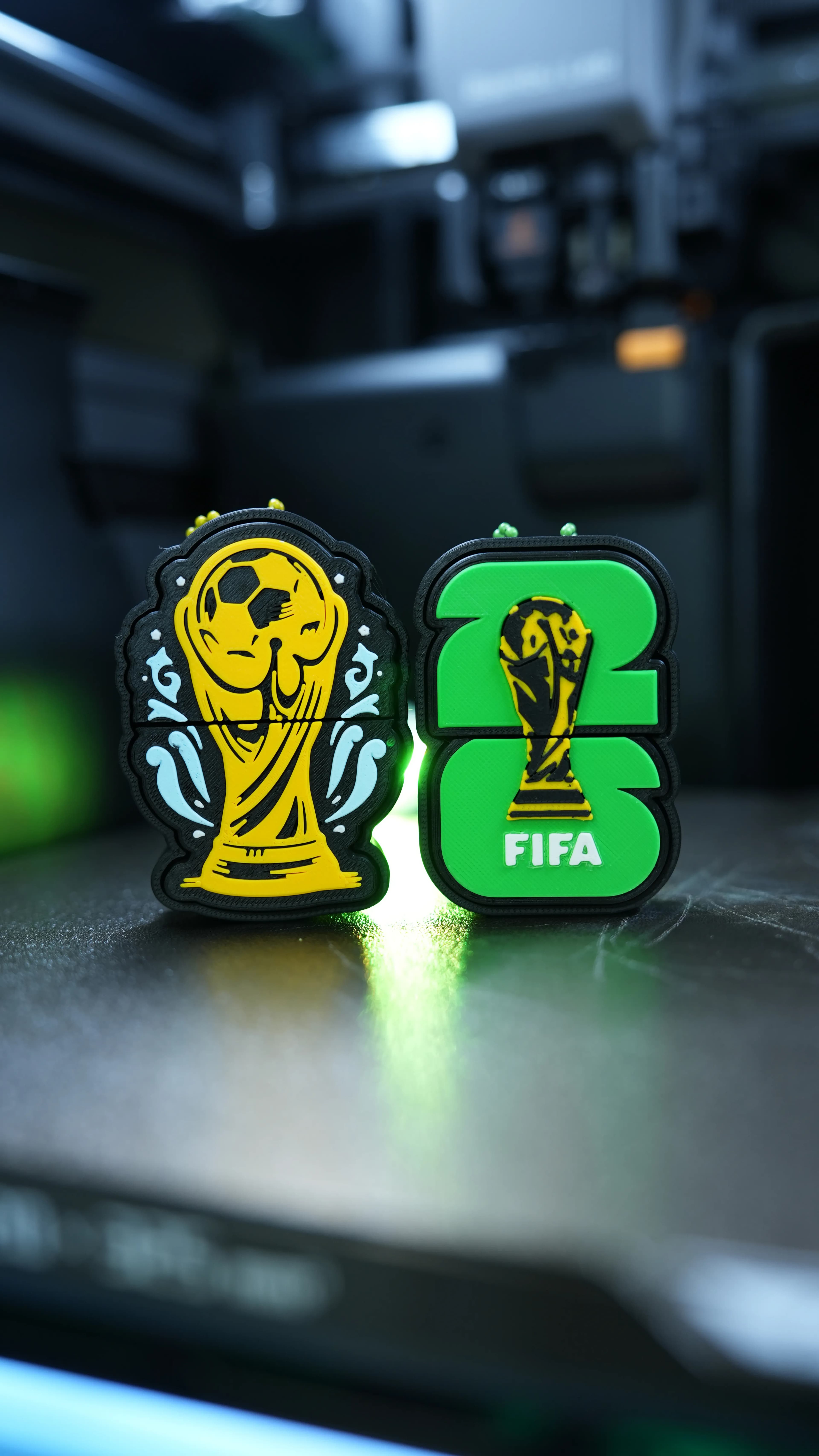
Fifa World Cup 2026 Clickers (Made with ClickerFactory.com)
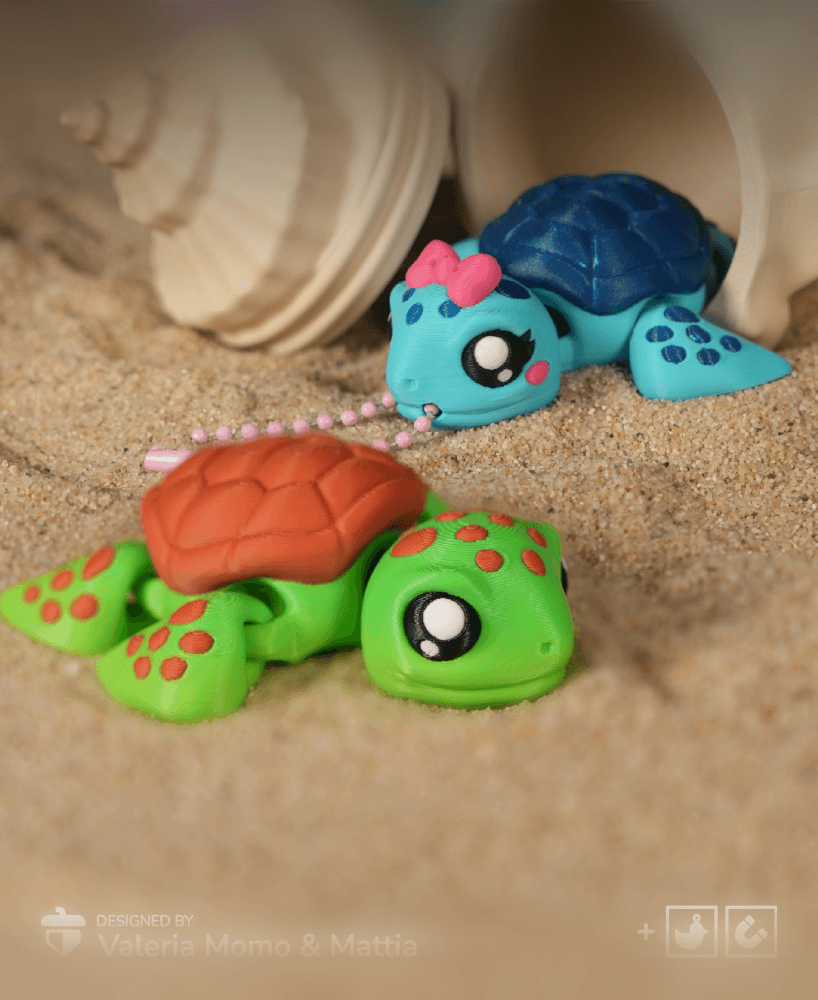
Cute Flexi Sea Turtle (Toy, Keychain, Magnet)

LLama Clicker (Made with ClickerFactory.com)

Bee Happy Clicker (Made with ClickerFactory.com)

Email Warrior Clicker (Made with ClickerFactory.com)

Dog Bulldog Dachshund Poodle (Made with ClickerFactory.com)

Axolotl Head Clicker (Made with ClickerFactory.com)

Jurassic Dino Clicker Pack (Made with Clicker Factory)

Avocado Sushi Clicker Pack (Made with Clicker Factory)

American Breakfast Clicker Pack (Made with Clicker Factory)

Clicker Dog Pack Cocker Bulldog Corgi (Made with ClickerFactory.com)

I can select the 'text' object, but cannot find any setting to edit the text in the imported model in Prusa Slicer. I can add text and edit that, but not the imported text object. I searched quite a bit of google - the video does not contain references that are applicable in Prusa slicer I can find - help please!
Hi, there is a YouTube guide https://youtu.be/1I1bhiXffh8
Thank you!!
This doesn't work for me. I'm using Bambu Lab 1.10.1.50 and when I edit the text, the text "stands up" vertically and is no longer laying on the snowflake.
What’s the blue GITD filament you used? BambuLab?
hi, yes, i used "bambulab pla glow blue"